
Rubik's Cube Solver
About
The Rubik's cube is suspended in the air by the six NEMA 17 stepper motors. The stepper motors are screwed into a few mounting plates that surround the cube.
Each stepper motor is connected to its own stepper driver. The stepper drivers each have 8 inputs and 4 outputs, so if using jumper wires this would get very messy. So, I designed a custom PCB to better manage this. The PCB sits on top of the controller (Arduino Mega) and has each of the drivers soldered onto it.
To solve the cube, I manually put the configuration into a website that told me the optimal moves. Then, I sent these moves to the robot so it could execute them. In the future, I would like to add a camera to the robot so it can solve the cube automatically without any external help.
CAD (link)
CAD and Code (download)
Fastest solve time of 2.22 seconds
Process and Parts
The main structure consists of four side plates and two bottom/top plates printed from PLA at 25% infill. To screw together, M4 bolts are threaded into brass inserts that were melted into the side plates. Four 3d-printed "feet" are also mounted to the bottom to keep the bottom stepper motor from touching the ground.
For strength purposes, I chose to make all of the 3d printed parts .25in thick, this also the reasoning behind the 25% infill. It's most likely overkill, but it can't hurt it.
Each of the stepper motors has four wires that connect to their respective drivers on a PCB I designed. More about the PCB is described below.
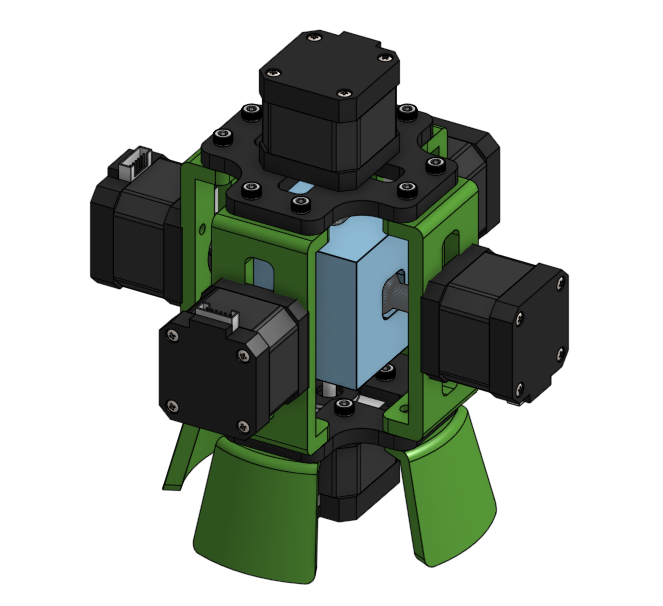
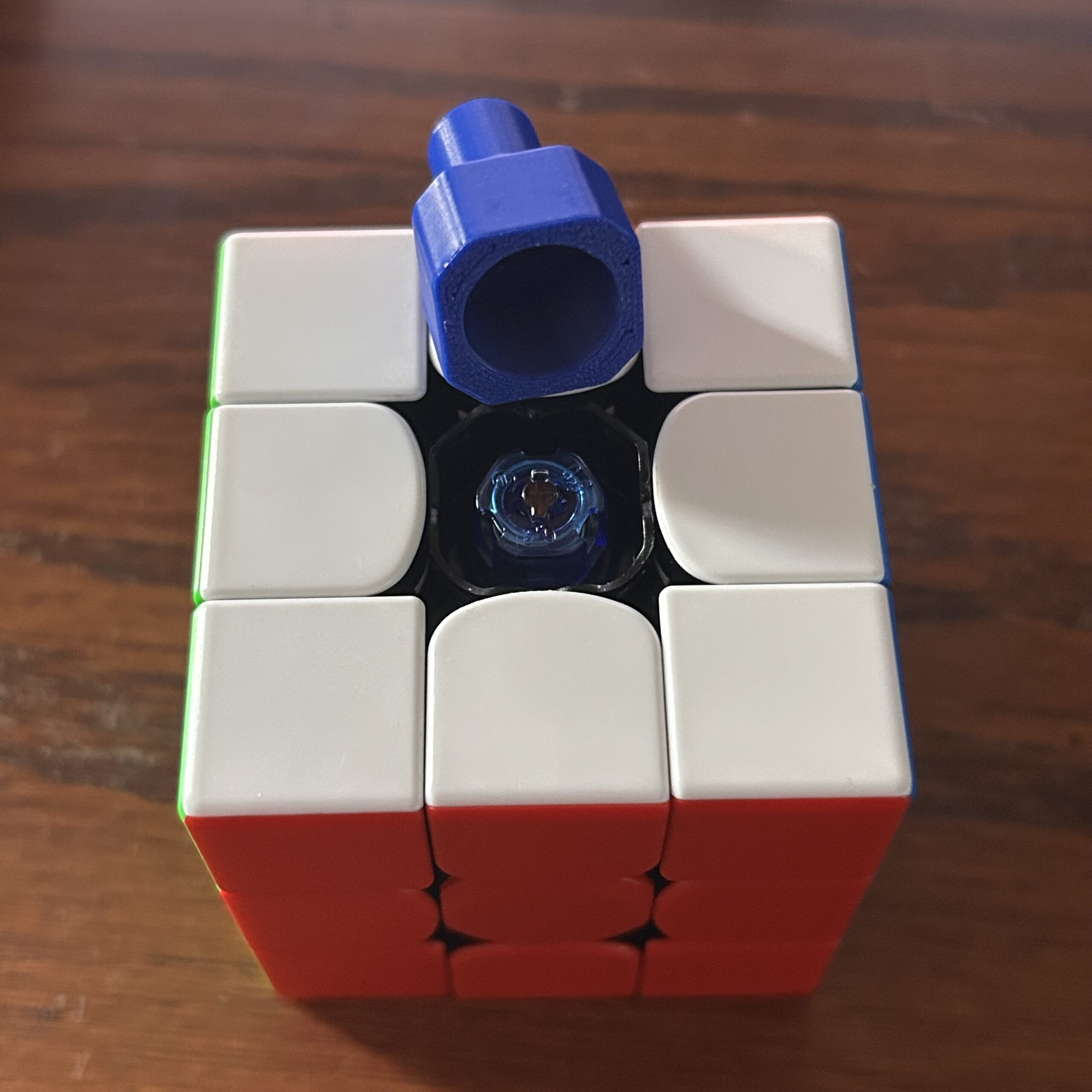
Each stepper motor has a connecting shaft that fits the D profile of the stepper motor.
To connect to the cube, I popped off the plastic plates on each of the centers, and fitted a hexagonal connecter to the center to allow for torque transfer.
PCB
The PCB I designed is a shield for the Arduino Mega. This means it has downward facing pins that insert into the Arduino, creating an easy way to connect the board to the controller. Copper traces connect the necessary Arduino pins to the stepper motor, as well as connecting a screw terminal to the power pins on the stepper drivers.
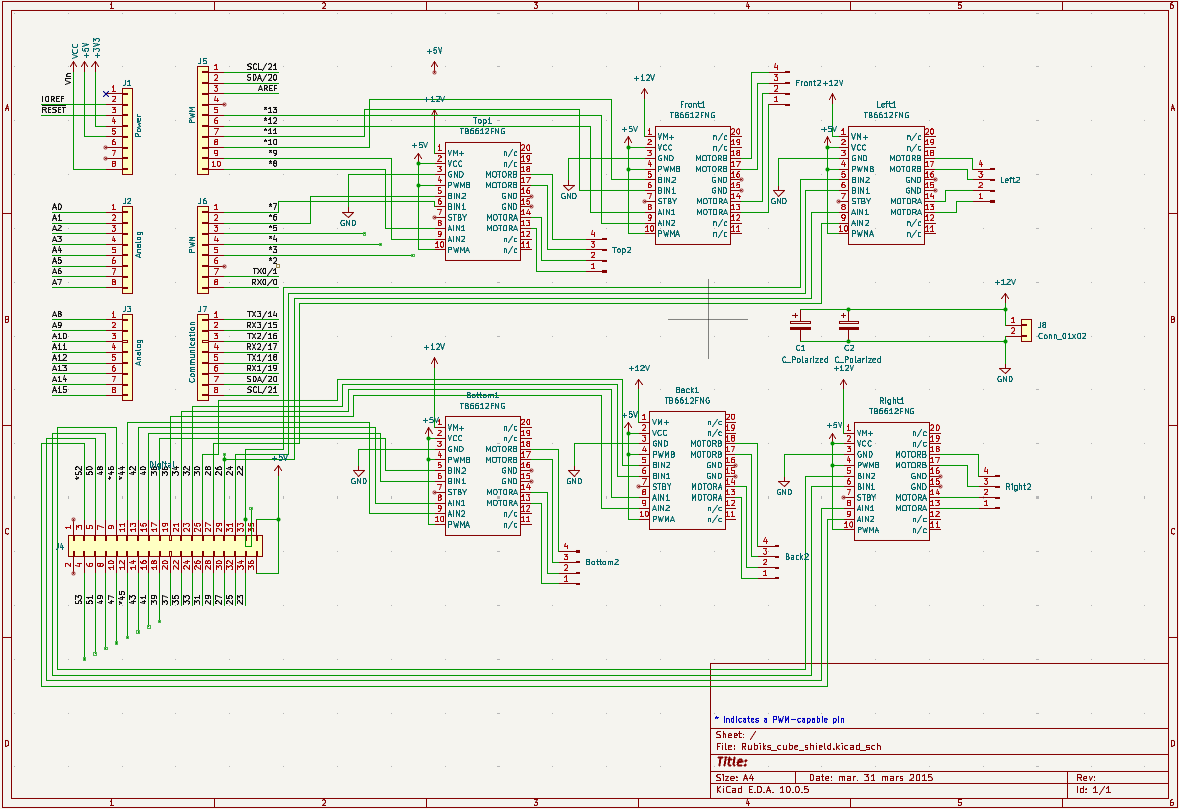
The KiCad circuit schematic used.
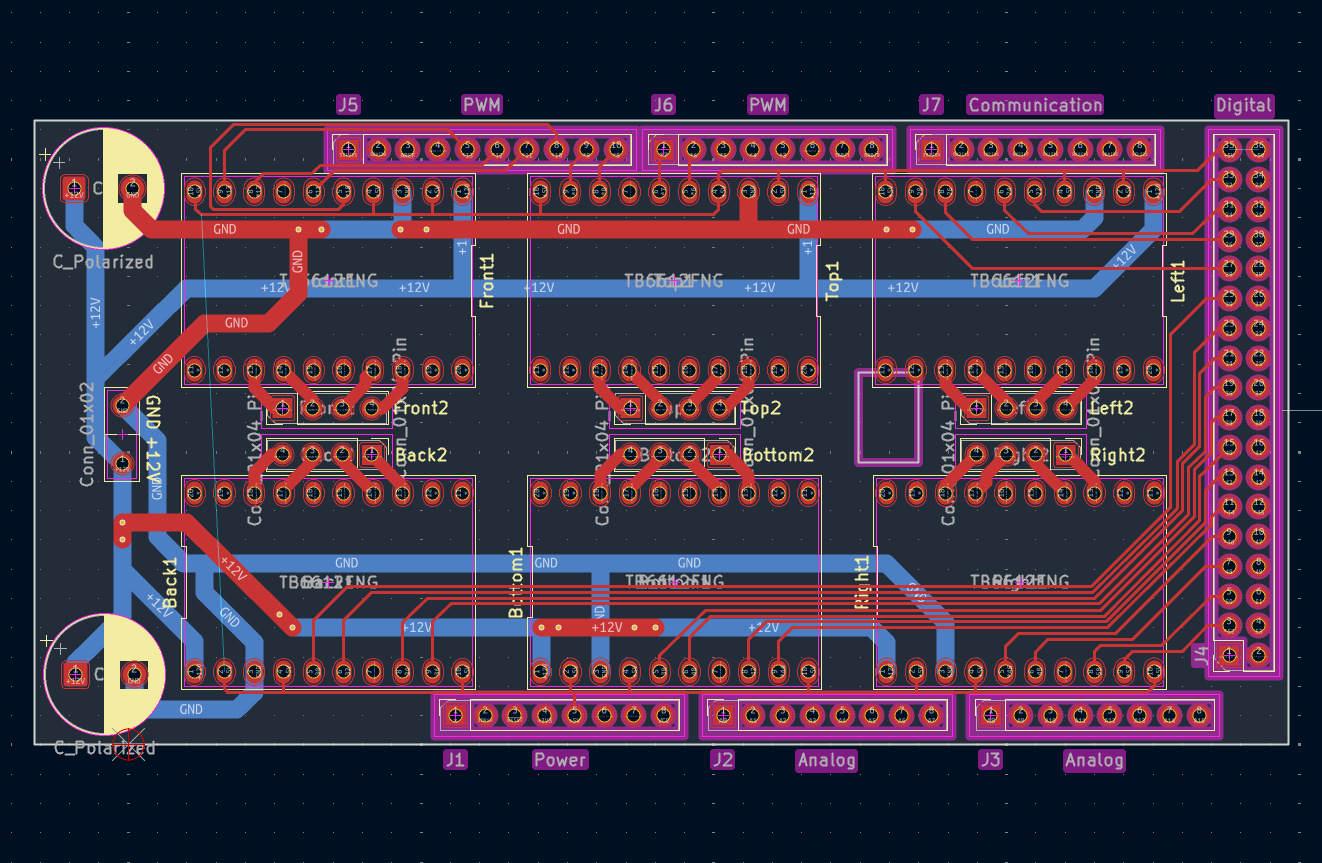
The KiCad PCB layout. The signal pins are located on the top and right side of the Arduino, so the traces had to be routed accordingly. All signal traces are on the top layer, while power traces are on both the top and bottom layer. Luckily, I had enough room on the circuit board to add two capacitors to help smooth out the voltage.
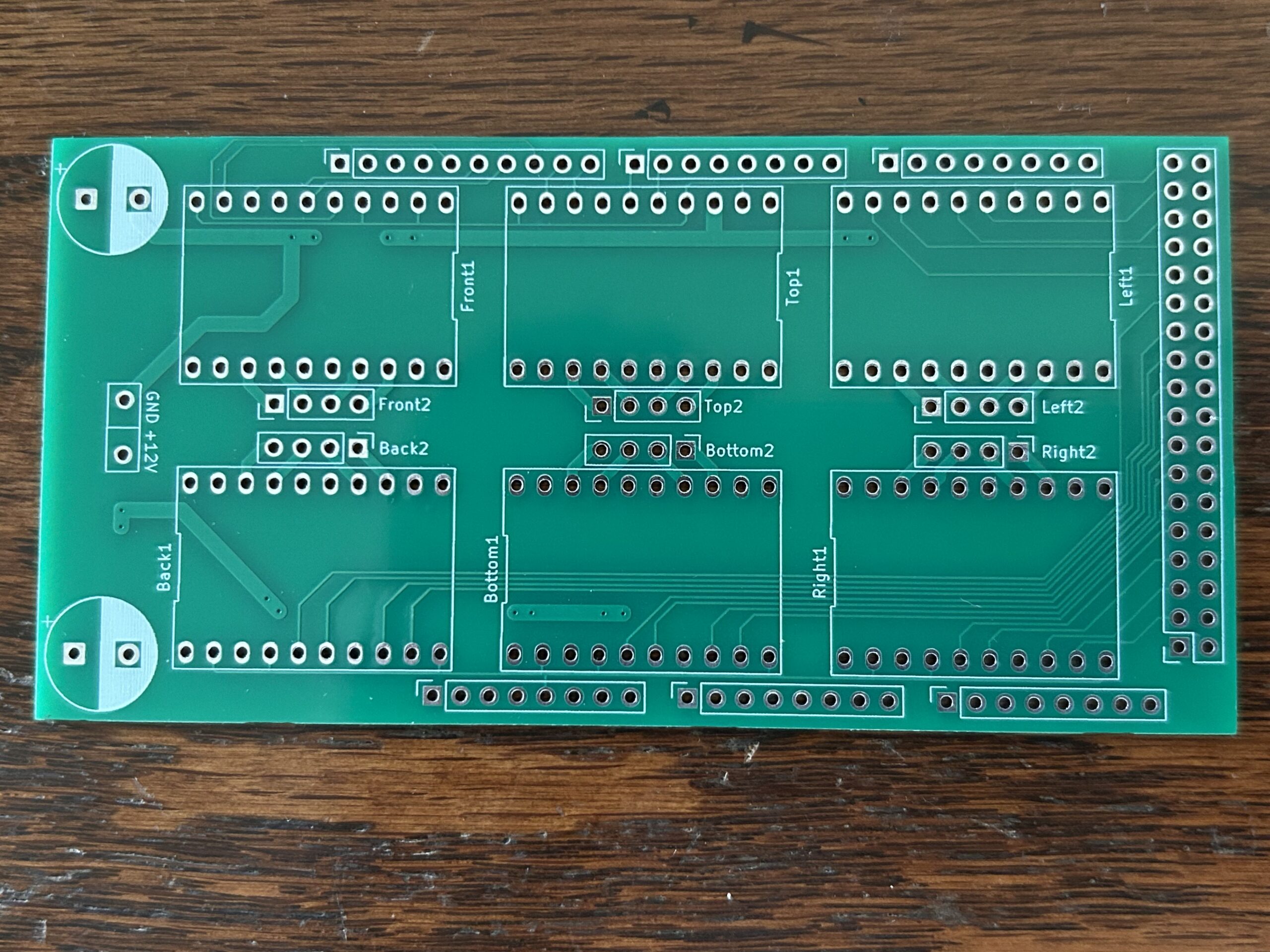
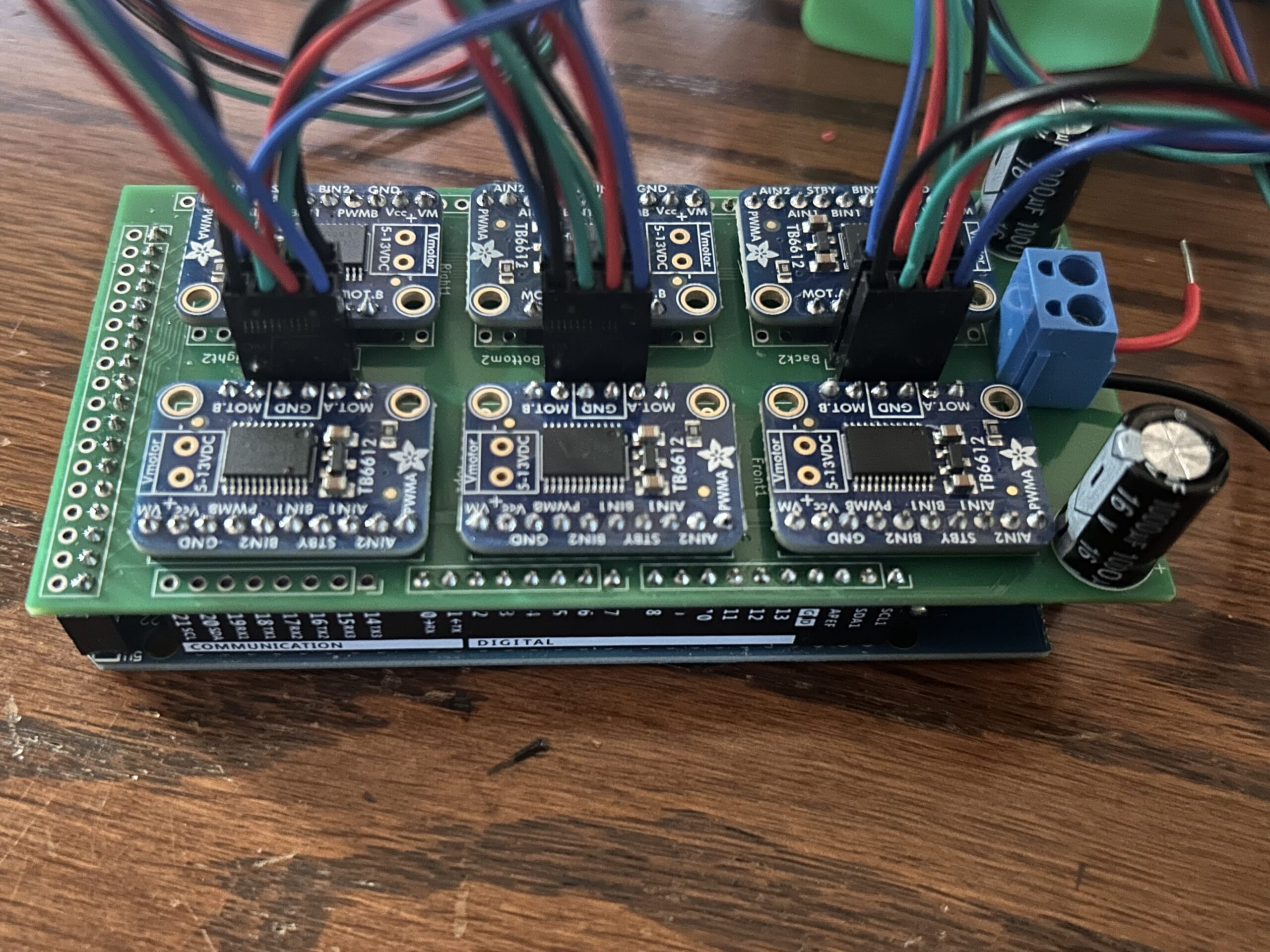
Unpopulated PCB from the factory (left), and the populated pcb with all pins, stepper drivers, and capacitors (right).